
Skip to content
  • Contact
  • Login
  • Registration
  • Contact
  • Login
  • Registration
prwires
  • Home
  • About Us
  • Our Services
    • Press Release Distribution
    • Press Release Writing
    • Video Press Release
    • White Label Press Release Distribution
  • Pricing
    • Press Release Distribution Pricing
    • Press Release Writing Pricing
    • Press Release Video Pricing
    • Unlimited Press Release Distribution
  • PR Room
  • Guidelines
    • How it Works
    • Why Choose
    • How PR Work
  • FAQ
  • Submit News
  • Home
  • About Us
  • Our Services
    • Press Release Distribution
    • Press Release Writing
    • Video Press Release
    • White Label Press Release Distribution
  • Pricing
    • Press Release Distribution Pricing
    • Press Release Writing Pricing
    • Press Release Video Pricing
    • Unlimited Press Release Distribution
  • PR Room
  • Guidelines
    • How it Works
    • Why Choose
    • How PR Work
  • FAQ
  • Submit News

Backup Header Below

  • Home
  • About Us
  • Our Services
    • Press Release Distribution
    • Press Release Writing
    • Video Press Release
    • White Label Press Release Distribution
  • Pricing
    • Press Release Distribution Pricing
    • Press Release Writing Pricing
    • Press Release Video Pricing
    • Unlimited Press Release Distribution
  • PR Room
  • Guidelines
    • How it Works
    • Why Choose
    • How PR Work
  • FAQ
  • Submit News
  • Home
  • About Us
  • Our Services
    • Press Release Distribution
    • Press Release Writing
    • Video Press Release
    • White Label Press Release Distribution
  • Pricing
    • Press Release Distribution Pricing
    • Press Release Writing Pricing
    • Press Release Video Pricing
    • Unlimited Press Release Distribution
  • PR Room
  • Guidelines
    • How it Works
    • Why Choose
    • How PR Work
  • FAQ
  • Submit News

Home –  Luxury Brands – Setting up your Fitbit: How to set up the Charge, Versa, etc

Setting up your Fitbit: How to set up the Charge, Versa, etc

You've snagged yourself a brand new Fitbit tracker. The question is, how do you set it up? In this tutorial, we will show you how you can connect your Fitbit Charge, Versa or Sense to your smartphone or computer. We also have a few tips that can help you get you started right away.
  • Posted March 21, 2022
  • By katherine728
Post Views: 1,576
PrevPrevious
NextNext

In order to use your Fitbit tracker, you will need a Fitbit account first. You only need to connect your Versa, Charge, Sense and other compatible devices to your account once. If you were to log in to your account on other devices after the initial setup, all of the data would have been synchronized and are readily available.

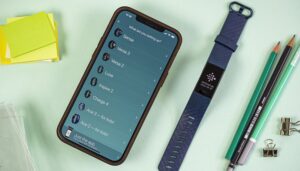
NextPit fitbit sense phone app

Learn how to set up your Fitbit tracker and connect it to the Fitbit app / © NextPit

Contents:

Setting up Fitbit fitness trackers with Android/iOS.

Connecting your Fitbit fitness tracker to your computer

Synchronizing and setting up key features

1. Setting up your Fitbit fitness tracker to an Android/iOS device

The easiest and fastest method of setting up a Fitbit tracker is to do so with your smartphone. The process to connect it to your iOS or Android device is identical. In any case, it is important that your smartphone’s Bluetooth connection is turned on and your Fitbit tracker is charged to a reasonable level.

1.1 Installing the Fitbit app on your smartphone

First, you will need to install the Fitbit app on your smartphone in order to set up the tracker.

Download the Fitbit app from the Google Play Store

Download the Fitbit app from the Apple App Store

Huawei smartphone users can locate the Fitbit app via Petal Search.

1.2 Create a Fitbit account

After installing the app, the Fitbit app will ask you to either log in using your existing account or create a new account. Just follow the instructions shown on the screen to proceed.

If you already have a Fitbit account, you can skip this step and log in directly using your existing credentials.

1.3 Connect your Fitbit tracker to your account

In the next step, you will connect the Fitbit tracker to your Fitbit account. If you have just created a new account in step 1.2, the app will automatically search for new devices.

NextPit fitbit setup smartphone 01

Once you’ve created your account or logged into the app, add the fitness tracker. During the setup process, you’ll need to enter a code from the Fitbit tracker on your smartphone (right). / © NextPit

Otherwise, click on your profile picture in the top left corner of the app. In that menu, you will find the item “Set up a device” at the top, which will begin the search process. It is important for you to select the correct device in this step. If the app is on the lookout for a Versa 3 but you have a Charge 4 instead, the setup might not work.

Tip: For increased security, you should activate two-factor authentication in your account. You can find the option under “Account settings” and “Two-factor authentication”.

2. Connectingyour Fitbit fitness tracker to your computer

As an alternative to your smartphone, you can also set up your Fitbit fitness tracker to connect to your computer. In order to do this, you will need the software known as Fitbit Connect, which is available for Windows 10 and (theoretically) macOS X. Unfortunately, the Fitbit application for macOS X is outdated and no longer functions well on the latest version of the operating system.

NextPit fitbit setup mac 01

It doesn’t get any newer than the Charge 2. Unfortunately, Fitbit Connect for macOS X is outdated / © NextPit

2.1 Download and install Fitbit Connect

To connect the Fitbit tracker to your computer, you need the right software. Currently (as of July 2021), we do not recommend the macOS X version.

Download Fitbit Connect from the Microsoft Store

Download Fitbit Connect for macOS X (deep link from Fitbit.com)

2.2 Create a Fitbit account

To connect your Fitbit tracker to your computer, you’ll also need a Fitbit account. When you first launch Fitbit Connect, it will present you with the option to “set up a new device”. If you do not have a Fitbit account yet, click “New to Fitbit” and follow the subsequent instructions that are displayed in the browser to finish setting up your account.

If you already have a Fitbit account, simply click on “Existing User” in Fitbit Connect and log in using your email and password.

2.3 Connecting your Fitbit tracker to your account

Once you have logged into Fitbit Connect with your new or old account, you can connect your Charge, Sense, Versa, and other compatible devices. Make sure your computer has Bluetooth turned on. Follow it up by clicking on the business card icon in the top right corner of the app (second from the right).

From there, select the correct Fitbit device and follow the instructions displayed in the app to connect. If you’ve connected the device to your account from your computer, you don’t need to perform these steps on your smartphone – all you need to do is to log in using your email and password.

NextPit fitbit setup computer 01

In the Windows 10 application, first click on the business card icon in the upper right corner and then add your fitness tracker in this window / © NextPit

3. Synchronizing and setting up the most important functions

The following step would see us provide a few more tips on how to get started with your newly set up fitness tracker in order to obtain maximum benefits from your Charge, Versa, Sense, and compatible device.

The first step is simple: wear your newly set up fitness tracker for as often as possible in order to let it collect data about your body and lifestyle habits. The Fitbit tracker will be able to collect the following metrics even without your intervention:

Sleep duration and quality.

Steps taken and distance traveled.

Floors climbed.

Calories burned.

Heart rate and resting pulse.

Make sure you pay close attention to the battery level and charge the tracker as and when required to avoid gaps in the data collection.

What does your resting heart rate, SpO2, REM sleep, etc. really mean?

Synchronization: Manual and automatic

Basically, you don’t have to do anything else to synchronize your data. The Fitbit tracker will automatically connect and transfer data whenever the device is within range of a computer or smartphone automatically with the existing app after the initial set up.

Alternatively, you can also perform a manual synchronization. You can do this in the device settings that you have set up by clicking the “Sync now” button. Alternatively, you can simply drag the home screen of the app down on the smartphone to begin the synchronization.

NextPit fitbit setup smartphone 02

Manually syncing data works by dragging the app’s homescreen down (left). If you track your workouts, you’ll be rewarded with detailed data (middle and right). / © NextPit

Tracking your workouts

While your Fitbit tracker automatically tracks your everyday activity, you also have the option of tracking your workouts manually. Whenever you’re running or cycling, you can admire the distance that you’ve covered afterwards.

By manually beginning these training sessions via the fitness tracker itself or the app, you can review your performance later on how successful you have been with your training plan. In addition, selected data and metrics, such as the heart rate or times spent in different pulse ranges can be better tracked.

Tracking your nutrition

You can also use the Fitbit app to track your nutrition intake. This is especially important if you are interested in keeping track of your weight. You can then calculate your calorie intake against the number of calories consumed.

The difference will then (theoretically) determine whether you are gaining or losing weight. In reality, of course, it is a bit more complex than simple calorie intake (or deficit), so I would recommend the following articles when it comes to determining calorie consumption.

Source: https://www.nextpit.com/fitbit-how-to-set-up

  • https://www.nextpit.com/
  • Fitbit
  • United States
  • Tags: account, charge 3, charge 4, fitbit connect, fitbit setup, fitbit sync, sense, versa 2, versa 3
PrevPrevious
NextNext

Other Press Releases

How do I invest in cryptocurrencies?
August 30, 2023

Determine your investment goals. Are you looking for short-term gains, long-term wealth accumulation, or portfolio diversification? Your goals will shape your investment strategy.

Read More »
How to free up space in your Google Account
March 14, 2022

Tired of being warned by Google Photos, Gmail, or Google Drive that you are running out of storage space in your Google Account? Learn how to find trash, spam, and

Read More »
Top 10 Best Traffic Exchange Websites In 2022
April 21, 2022

Not every blogger or YouTuber can generate traffic, most of the new websites do have less traffic than expected. Traffic exchange websites do help you to get free traffic to

Read More »

Author Infomation

Picture of katherine728

katherine728

Featured Image

Recent Press Releases

Green Book Movie Review
Green Book Movie Review – Analysis, Cast & Truth
May 4, 2026
Win Place Show
Win, Place, Show Betting Explained: Complete Guide to Horse Racing Wagers, Strategies & Payouts
May 4, 2026
Web Info IT SEO Summer Internship
Web Infomatrix Announces Free IT & SEO Summer Internship Program to Empower Future Digital Professionals
May 2, 2026
Best Event Listing Platform UK- Local Page
Best Event Listing Platform UK – Local Page
April 23, 2026
Local Page Launches Sponsored Booster Package with 50% Introductory Offer
April 18, 2026
inews
Green Book Movie Review – Analysis, Cast & Truth
May 4, 2026
Win, Place, Show Betting Explained: Complete Guide to Horse Racing Wagers, Strategies & Payouts
May 4, 2026
Web Infomatrix Announces Free IT & SEO Summer Internship Program to Empower Future Digital Professionals
May 2, 2026
Best Event Listing Platform UK – Local Page
April 23, 2026
Local Page Launches Sponsored Booster Package with 50% Introductory Offer
April 18, 2026
prwires
Whatsapp Telegram Skype

Follow Us

Facebook Twitter Linkedin

Office Address

  • PR Wires, New York, NY, USA
  • United State

Contact

  • +91 9212 30 6116
  • info@prwires.com

PR Distribution

  • How It Works
  • Why Us
  • Pricing
  • Distribution
  • Editorial Guidelines
  • Contact Us

Releases by Industry

  • Event Press Releases
  • Business Press Releases
  • New Product Launch Press Releases
  • Luxury Brands Press Releases
  • Real Estate Press Releases
  • Crypto Press Releases

Our Services

  • PR Distribution
  • Video News Distribution
  • PR Writing
  • Unlimited PR Distribution
  • White Label PR Distribution
  • Brand Promotion

Newswires

  • All Newswires
  • US Newswires
  • UK Newswires
  • Australia Newswires
  • Canada Newswires
  • Europe Newswires

Help/Support

  • User Register
  • Login
  • FAQ
  • Client Testimonials
  • Contact Us
  • Terms of Service
DMCA
PROTECTED
 © 2026 Copyright All Rights Reserved. Prwires.com.
  • +91 9212 30 6116
  • info@prwires.com
  • Enquiry Now
We use cookies on our website to give you the most relevant experience by remembering your preferences and repeat visits. By clicking “Accept All”, you consent to the use of ALL the cookies. However, you may visit "Cookie Settings" to provide a controlled consent.
Cookie SettingsAccept All
Manage consent

Privacy Overview

This website uses cookies to improve your experience while you navigate through the website. Out of these, the cookies that are categorized as necessary are stored on your browser as they are essential for the working of basic functionalities of the website. We also use third-party cookies that help us analyze and understand how you use this website. These cookies will be stored in your browser only with your consent. You also have the option to opt-out of these cookies. But opting out of some of these cookies may affect your browsing experience.
Necessary
Always Enabled
Necessary cookies are absolutely essential for the website to function properly. These cookies ensure basic functionalities and security features of the website, anonymously.
CookieDurationDescription
cookielawinfo-checkbox-analytics11 monthsThis cookie is set by GDPR Cookie Consent plugin. The cookie is used to store the user consent for the cookies in the category "Analytics".
cookielawinfo-checkbox-functional11 monthsThe cookie is set by GDPR cookie consent to record the user consent for the cookies in the category "Functional".
cookielawinfo-checkbox-necessary11 monthsThis cookie is set by GDPR Cookie Consent plugin. The cookies is used to store the user consent for the cookies in the category "Necessary".
cookielawinfo-checkbox-others11 monthsThis cookie is set by GDPR Cookie Consent plugin. The cookie is used to store the user consent for the cookies in the category "Other.
cookielawinfo-checkbox-performance11 monthsThis cookie is set by GDPR Cookie Consent plugin. The cookie is used to store the user consent for the cookies in the category "Performance".
viewed_cookie_policy11 monthsThe cookie is set by the GDPR Cookie Consent plugin and is used to store whether or not user has consented to the use of cookies. It does not store any personal data.
Functional
Functional cookies help to perform certain functionalities like sharing the content of the website on social media platforms, collect feedbacks, and other third-party features.
Performance
Performance cookies are used to understand and analyze the key performance indexes of the website which helps in delivering a better user experience for the visitors.
Analytics
Analytical cookies are used to understand how visitors interact with the website. These cookies help provide information on metrics the number of visitors, bounce rate, traffic source, etc.
Advertisement
Advertisement cookies are used to provide visitors with relevant ads and marketing campaigns. These cookies track visitors across websites and collect information to provide customized ads.
Others
Other uncategorized cookies are those that are being analyzed and have not been classified into a category as yet.
SAVE & ACCEPT